How to Collect Photos from Guests at a Housewarming Party
Turn your housewarming into a guest-generated home-tour gallery. Use QR codes, room-by-room photo prompts, and a live slideshow to collect every memory.
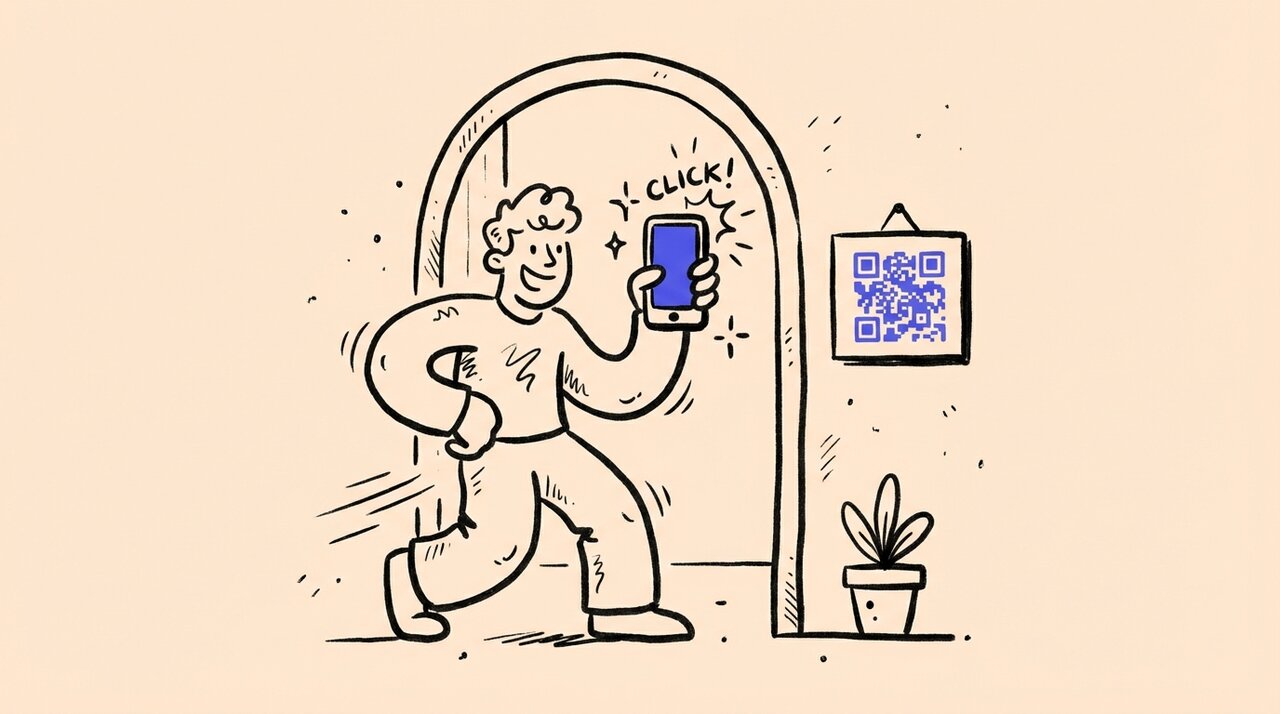
Short answer: Set up a QR code at your housewarming that guests scan to upload photos directly from their phone browser. Place photo prompts in each room to guide what guests capture, and display a live slideshow on a TV so everyone can see the gallery grow in real time. Gather Shot is a photo sharing platform for events that handles the entire flow with no app download required.
- Place a QR code sign at the entrance so guests can start uploading the moment they arrive
- Add room-by-room photo prompts (like “best kitchen detail” or “coziest corner”) to turn the party into a home-tour gallery
- Use custom tags to organize uploads by room for easy browsing later
- Run a live slideshow on a TV in the living room or patio so guests see their own photos on screen
- Keep uploads open for 24 to 72 hours after the party so guests can add photos they missed
Who this is for (and not for)
This guide is for:
- New homeowners hosting a housewarming and wanting photos from every room and every guest
- People who want to turn a casual gathering into a shared home-tour experience
- Hosts who prefer a private album over scattered group chat photos
- Anyone planning a progressive-style housewarming where guests move room to room
- Couples or families who want a visual record of their home on move-in day
This is not for:
- Small get-togethers with fewer than 10 people where a group chat works fine
- Real estate professionals looking for listing photography tools
- Hosts who prefer guests put their phones away entirely
Why housewarming photos are worth collecting
A housewarming is one of the few times your home is full of people who care about it. Guests notice details you have already stopped seeing. They photograph the paint color, the kitchen island, the backyard lights, and the weird closet you turned into a reading nook.
Those photos disappear fast. They end up on individual camera rolls, buried in group texts, or posted to social media stories that vanish in 24 hours. A week later, you have your own photos and maybe three someone texted you.
The fix is simple: give guests one place to upload photos during the party. A shared gallery collects everything in real time, organized and private. You keep the memories, and guests enjoy seeing their photos show up on a screen during the party.
According to Pew Research Center , 80% of U.S. adults ages 18 to 29 use Instagram. Your guests are already comfortable taking and sharing casual photos. The challenge is not getting them to photograph your home. It is getting those photos into one place.
The home-tour gallery concept
The best housewarming photo setup in 2026 borrows from a trend that has been growing: home-tour stations. Instead of one big mingle in the kitchen, hosts are guiding guests through the house with mini stops in key rooms. Food, drinks, and activities are split by zone.
This is a natural fit for photo collection. Each room becomes a station with its own photo prompt and its own QR code sign. Guests explore, snap photos based on the prompts, and upload as they go. By the end of the night, you have a room-by-room gallery that tells the story of your home through your friends’ eyes.
How to set up a home-tour photo gallery with Gather Shot
Gather Shot is a photo sharing platform for events that makes this setup straightforward. Here is the process:
- Create your event on Gather Shot and name it something clear, like “The Garcia Housewarming” or “Welcome to 42 Oak Street”
- Set up room-based tags so uploads are organized automatically. Create tags like: Entryway, Kitchen, Living Room, Backyard, Bathroom, Home Office
- Generate your QR code and print one main code for the entrance, plus optional codes for each room station
- Turn on moderation so you review photos before they appear on the live slideshow
- Open the slideshow on a TV or laptop in the living room or patio
Guests scan the QR code with their phone camera, select photos, and upload through their browser. No app download, no account creation. The whole process takes about 10 seconds.
For a detailed walkthrough of QR code setup, see our complete QR code photo collection guide .
Room-by-room photo prompts
Photo prompts are the difference between a gallery of random shots and a curated home tour. Print 2 to 3 prompts per room on a small card or framed sign next to the QR code.
Here are prompts that work well at housewarmings:
Entryway and front door
- “First impression shot”: Photograph the front door, house number, welcome mat, or wreath like it belongs in a home design magazine
- “We made it” selfie: Snap a photo with the host at the door or entry table
- “Best tiny detail”: Capture the first thing you noticed: key bowl, mirror, hooks, bench, or door knocker
Kitchen
- “Signature snack shot”: Style the prettiest bite, drink station, or charcuterie spread
- “Cheers from the heart of the house”: Take a toast photo around the island, counter, or stove
- “Kitchen personality pic”: Find the one object that says the most about the host: espresso setup, cookbook stack, hot sauce shelf
Living room
- “Claim your seat”: Photograph the exact spot you would steal for movie night
- “Coziest corner wins”: Capture the best lamp, blanket, book, and plant combo you can find
- “First official hang”: Group shot on the couch or around the coffee table
Backyard and patio
- “Golden hour moment”: Get a sunset cheers photo outside
- “Summer headquarters”: Photograph the feature everyone will use most: grill, fire pit, lounge chairs, herb garden, or string lights
- “Best patio vibe”: Capture the setup that feels most like a weekend getaway
Bathroom
- “Best small-space design”: Shoot the tile, mirror, wallpaper, vanity, or lighting
- “Spa shelf close-up”: Style the hand soap, candle, towel, or tray like a boutique hotel
Home office
- “Desk setup you’d copy”: Photograph the workspace that makes Monday look manageable
- “Best video call background”: Capture the wall, shelves, or window behind the desk
Zillow’s 2025 Consumer Housing Trends Report found that 51% of prospective buyers said an extra room for a home office was very or extremely important. Your guests will be just as curious about your office setup.
You can also turn these prompts into a photo scavenger hunt using Gather Shot’s interactive scavenger hunt feature. Guests get a list of challenges on their phone and check them off as they upload. It adds a light competitive energy without taking over the party.
Running a live slideshow during the party
One of the best parts of collecting photos in real time is showing them on a screen during the party. Guests love seeing their own photos appear, and it encourages more people to upload.
Gather Shot includes a live slideshow feature that works on any screen with a browser. Open the slideshow URL on a TV, projector, laptop, or tablet, and new photos appear automatically as they are approved. The display rotates every few seconds through your growing collection.
Where to put the slideshow screen:
- Living room TV: The natural gathering spot. Guests will crowd around it
- Patio or backyard screen: Works well for evening parties when the light fades and a glowing screen draws attention
- Kitchen counter tablet: A smaller display near the food keeps the energy going where guests congregate
Only approved photos appear on the slideshow, so you stay in control. Assign a co-host to monitor the moderation queue so you can focus on hosting.
For the full setup process, check out our guide on setting up a live photo slideshow at events .
Your setup checklist
Follow this checklist to prepare your housewarming for Gather Shot photo collection:
- Pick the rooms you want in the gallery. Decide which areas are open for photos. Skip any private spaces you are not comfortable sharing
- Create your Gather Shot event. Name it clearly and add the event date and a short description
- Set up room-based tags. Create tags like Entryway, Kitchen, Living Room, Backyard, Bathroom, Home Office, plus optional extras like Selfies, Food, Decor Details, or Group Photos
- Generate and print your QR codes. Print at least one main code for the entry (5x7 inches minimum) and smaller codes for room stations. Add “Scan to share your photos, no app needed” to every sign
- Write and print photo prompts. Place 2 to 3 prompts per room on a small card or frame next to the QR code
- Turn on moderation. Enable photo approval so the live slideshow only shows photos you want displayed
- Assign a co-host. Invite someone to help with moderation and to remind guests to scan and upload
- Configure the live slideshow. Choose a screen location, open the slideshow URL, and set it to full screen. Start with all approved photos, then switch to room highlights later in the night
- Set your upload window. Keep uploads open during the party and for 24 to 72 hours after so guests can add late photos
- Run a full test. Test the QR code on both iPhone and Android. Upload at least one photo per room tag. Confirm moderation works and the slideshow updates
- Do a final lighting check. Walk through each room and make sure lighting is decent for photos. Move clutter, hide anything private, and confirm signs are readable from a few feet away
- Announce it early and often. Mention the QR code when guests arrive, again before food is served, and once more during the evening. The more you mention it, the more uploads you collect
How Gather Shot fits into your housewarming
Gather Shot is a photo sharing platform for events built for exactly this kind of gathering. Here is what makes it a good fit for housewarmings specifically:
What works well:
- No app download required. Guests scan a QR code and upload through their browser in about 10 seconds. This matters at a housewarming where guests range from tech-comfortable friends to older family members
- Custom tags for room-by-room organization. Create unlimited tags to sort photos by room, moment, or theme. Download organized bundles later instead of scrolling through hundreds of untagged photos
- Live slideshow on any screen. Turn a TV into a real-time photo display. Guests see their uploads appear and are motivated to contribute more
- Scavenger hunt mode. Turn your room prompts into an interactive challenge. Guests get a list on their phone and check off prompts as they upload. It gives the tour structure without a tour guide
- Moderation and privacy. You approve every photo before it appears in the public gallery or slideshow. Nothing shows up that you have not reviewed first
Where another approach might work better:
- If you have fewer than 10 guests, a group text or shared iMessage album is simpler
- If you want professional real estate photography of your home, hire a photographer instead
- If your home has limited or no WiFi, guests will need cell signal to upload. Test this before the party
For more on how guests upload to a shared gallery during an event, see our guide on getting guests to upload photos to a shared gallery .
Extra resources for planning your housewarming
These external resources can help with other parts of your housewarming planning:
- MyRegistry : A universal registry tool if you want to suggest practical gifts without locking guests into one retailer
- Party City : Balloons, disposable tableware, serving pieces, and signage supplies for last-minute party needs
- Houzz Photos : Room-by-room decor inspiration for entryways, kitchens, patios, and offices. Useful for styling rooms before the party so they photograph well
Frequently asked questions
How many QR code signs do I need for a housewarming?
At minimum, one at the entrance. For a home-tour style party, add one per room you want guests to photograph. Five to eight signs is a good range for a full home tour. Print them at least 5x7 inches and add a short instruction like “Scan to share your housewarming photos.”
Do guests need to download an app to upload photos?
No. Gather Shot is a photo sharing platform for events that runs entirely in the browser. Guests scan the QR code with their phone camera, select photos, and upload. No app store visit, no account creation, no login.
Can I keep some rooms out of the photo gallery?
Yes. Only place QR codes and prompts in rooms you want photographed. If a guest uploads a photo from a private space, you can hide it during moderation before it appears in the gallery or slideshow.
What if my WiFi is spotty in parts of the house?
Test cell signal and WiFi in each room before the party. If WiFi drops in certain areas, guests can upload using their mobile data instead. Gather Shot works on any internet connection. For rooms with no signal at all, guests can take photos and upload later when they are back in range.
How long should I keep the upload window open after the party?
Keep it open for at least 24 to 72 hours. Some guests will want to upload additional photos the next day when they review their camera roll. Gather Shot lets you control the upload window through the flexible upload schedules feature.
Can I display the slideshow outdoors on a patio?
Yes. The live slideshow works on any device with a browser. Use a laptop, tablet, or smart TV on your patio. Make sure the device is connected to WiFi or a mobile hotspot, and position the screen out of direct sunlight for visibility.
How do I organize photos by room after the party?
Create room-based tags in Gather Shot before the party (Entryway, Kitchen, Living Room, etc.). You can tag photos as they come in or bulk-tag them after. Then filter by tag and download organized bundles for each room.
Is there a cost for using Gather Shot at a housewarming?
Gather Shot offers a free trial that lets you create an event and start collecting photos. Paid plans use one-time pricing (not subscriptions) and include features like the live slideshow, scavenger hunts, and expanded storage. Visit the pricing page for current details.
Summary and next steps
A housewarming is one of the best events for guest-generated photos. Your friends and family notice details about your home that you have stopped seeing, and those perspectives are worth collecting.
The setup is straightforward: create a Gather Shot event, print QR codes, add room-by-room photo prompts, and turn on a live slideshow. Guests scan, upload, and see their photos on screen in real time. You end up with an organized, room-by-room gallery of your home through the eyes of the people who matter most.
Start by creating your free Gather Shot event . Generate your QR code, set up your room tags, and print your first signs. The whole setup takes less than 15 minutes.
Written by
Gather Shot TeamThe Gather Shot team writes guides, planning resources, and product updates that help event hosts and photographers collect guest photos without asking anyone to download an app.
Related articles
The Best Way to Host an Event and Collect RSVPs
Learn the easiest way to host an event and collect RSVPs with Mixily, a free ad-free RSVP platform. Plus tips for collecting event photos with Gather Shot.
Mar 31, 2026·7 min read
College Send-Off Party Ideas: Fun Photos Before Move-In Day
Plan a memorable college send-off party with creative photo ideas, a full planning checklist, and QR code photo sharing to capture pre-move-in memories.
Mar 30, 2026·15 min read
How to Collect Photos from a Scout Ceremony and Reception
Collect Eagle Scout, Gold Award, and bridging ceremony photos from every family into one shared album. QR code setup, checklist, and planning tips included.
Mar 30, 2026·14 min read